PLvACC Controller Pack - EuroScope AeroGNG Sector Manual
Chaneolog
| Change number | Chapter number | Change description | Changed by | Date |
|---|---|---|---|---|
| 1 | Initial release | Jan ACCPL23, Karol R. | 02.10.2025 | |
| 2 | Added GRP and TopSky manual, updated lists description, editorial changes | Karol ACCPL21, Jan ACCPL23, Bartosz ACCPL15 | 04.11.2025 | |
| 2.1 | COR update: list functionality | Karol ACCPL21 | 06.11.2025 | |
| 3 | Initial release on web and content verification | Mateusz ACCPL30 | 17.09.2026 |
Installation
Pack extraction
The Euroscope package for the controller prepared by PLvACC Operations Department is packed in ZIP file format. It is recommended to create a separate folder for sector files in an easily accessible location (e.g., Documents), where the package will be unpacked.
Sector loading in Euroscope
All basic PRF files, which are loading the sector, relevant settings and ASR display settings files, have been prepared. These files can be duplicated and modified to suit your individual needs.
Before loading, make sure that Other SET > Auto load last profile on startup and Auto save profile on exit are unchecked.

When loading the sector for the first time, EuroScope may display a prompt regarding the unavailability of the previous sector file, this is correct, as PRF and ASR files are intentionally generated on the older sector type to force the new one to be loaded.
For this reason, please follow the illustrations below:

Then select the NEWEST SECTOR FILE .SCT from the list, and when attempting to reload between ASRs, confirm its use:

Sector File update
There are two options for downloading the package on the AeroNav GNG website:
- EPWW Full Package: downloads the entire package, including default settings, login profiles, and plugins.
- EPWW Update Package: downloads only updated files. Does not change settings. Reccomended when only updating package.
First connection
After loading sector file, you may connect to the network as an Observer to observe work of Polish VACC controllers and gain experience prior to your own training. In Polish VACC Controller Pack we defined Login profiles, including Observer profile.
When you open Connection window, you should have all spaces blank, as presented below.
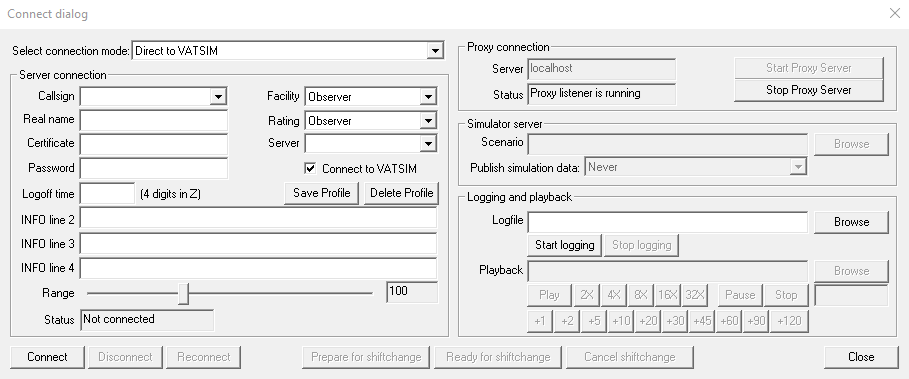
From the Callsign tab select %%_OBS profile.
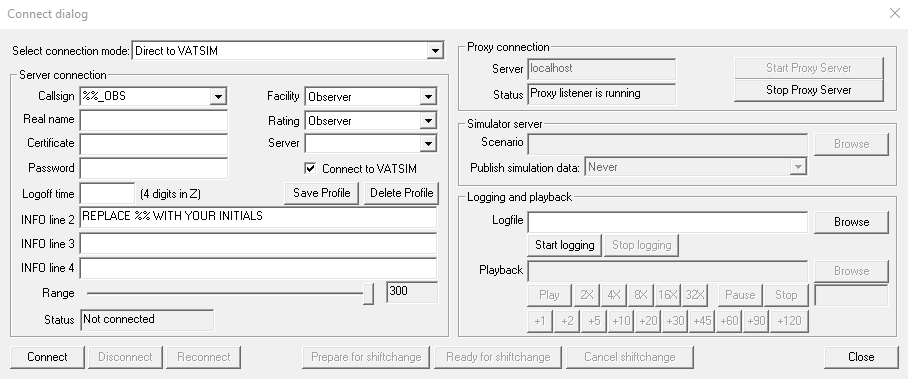
Replace the %% with your initials, enter your Real name, Certificate (VATSIM PID), and password. Then select Server: AUTOMATIC and clear INFO line 2. After that you are able to connect to the network and your Connection dialog should look like this:
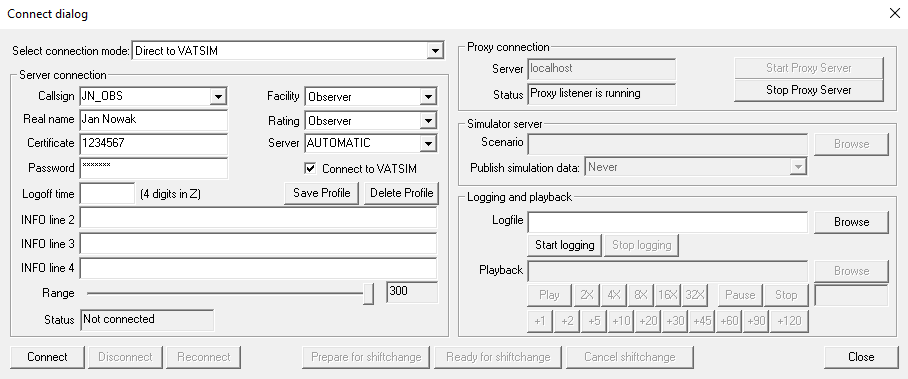
Press Connect button and you are ready to go.
After connecting to the network, Voice communication setup dialog should popup, select proper frequency (one you will be listening to) and close it.
When you open proper ASR file, you will see ground layout of selected airport and network traffic.
If you do not see the traffic, you need to manually select Visibility range, by typing .vis XXXX (where XXXX is ICAO code of selected airport) in the Command Line.
Basic use
Package description
The controller package has been prepared for immediate basic use – no further configuration is required, except in situations where the controller wants to modify individual functions of the application.
Loading the appropriate PRF profile will ensure that the settings are loaded for the respective position. PRFs have been created for the following positions:
- RADAR – ACC+APP – for area control, approach positions and procedural tower positions;
- TWR – Tower – for tower control positions and ground movement control positions (GND/DEL);
The settings are sorted into appropriate folders for each profile. There, they are organized as follows:
- Euroscope main settings files:
TWR/RADARgeneral.txt(depending on the selected profile), - Euroscope screen settings file:
Screen.txt– for the visual layout of program elements, - plugin settings file:
PLUGINS.txt, - settings files:
TWR/RADAR_Positions.txt– file storing login profiles for individual positions (depending on the selected profile), - frequency file (Ground to Air Voice communications):
VoiceChannels.txt, - coordination phone file (Ground to Ground Voice communications):
G2G_comms.txt, P21-TAGS.txtsettings file – responsible for TAG settings,P21-SYMBOLS.txtsettings file – responsible for Symbology (coloring, radar shapes, line format),- other files in the Settings folders are settings for individual lists:
- ADCS – ADC Sector List,
- ARR – Arrival List,
- CONFLICT – Conflict List,
- DEP – Departure List,
- FP – Flight Plan List,
- ORIGPLANE – Aircraft List,
- PILOT – Piloting List,
- SEL – Sector Exit List,
- SIL – Sector Inbound List,
- STUP – Startup List,
- TAKEOFF – Take Off List,
- TAXIIN – Taxi In List,
- TAXIOUT – Taxi Out List,
- relevant display files (options selected in Display Settings) saved in ASR files.
General scope organisation
TAGs, radar appearance and lists have been prepared based on real lists and TAGs from the Pegasus P21 system used by PANSA.
Default tags use the P21Euroscope.dll plugin. It is required for TAG to function properly. VATSIM restrictions and specifics have also been taken into account.
On RADAR lists, the coloring of the lists depends on the status of the aircraft. On TWR lists, the coloring is fixed.
The RADAR profile has a reduced version of the Startup List for easier traffic handling. In the TWR profile, it is prepared for use in the DEL/GND+TWR configuration.
All TAGs are set to Correlated A+C. P21 currently does not distinguish between separate tags for mode A+C and S.
ASR loading
ASR files are responsible for the display on the screen. They have been prepared as follows:
- EPWW - displayed elements for the area sector (to be used for APP and ACC controllers),
- TWR - radar preview for TWR position with CTR and TMA boundaries,
- GND - airport apron preview with Surveillance Maneuvering Radar simulation and preview of the area around the airport (using the APP window).
Lists
Departure List

| List item | Description | Left click | Right click |
|---|---|---|---|
| STS | Ground status | Ground state menu (GRP) | - |
| C/S | Callsign | - | Draw flight route |
| R | Communication type | Communication type popup | - |
| ATYP | Aircraft type | - | - |
| R | Flight rules | - | - |
| ADEP | Departure aerodrome | Flight plan | Flight plan |
| EOBT | Estimated Off-Block Time | Edit EOBT (CDM) | - |
| CTOT | Calculated Take-Off Time | CTOT Options (CDM) | - |
| ADES | Destination aerodrome | Flight plan | Flight plan |
| RWY | Assigned departure runway | Runway list | - |
| SID | Departure procedure | SID list | - |
| CFL | Temporary altitude | Altitude list | Add to CFL (Initial Climb) |
| ASSR | Assigned squawk | ASSR Window (TopSky) | - |
| C | Clearance received flag | Set clearance received flag | DCL Window (TopSky) |
| RFL | Requested altitude | Final altitude list | - |
| STND | Departure stand | - | - |
| REQ | Pending request | Request menu (VCH) | - |
| RQT | Pending request time | - | - |
| FREE TEXT | Scratch pad | Open scratchpad | Open scratchpad |
Arrival list

| List item | Description | Left click | Right click |
|---|---|---|---|
| C/S | Callsign | - | Draw flight route |
| R | Communication type | Communication type popup | - |
| ATYP/W | Aircraft type / Wake Turbulence Category | - | - |
| ADEP | Departure aerodrome | Flight plan | Flight plan |
| ETA | Estimated arrival time | - | - |
| CTL | Cleared to Land flag | CTL status change (VCH) | - |
| STND | Arrival stand | Stand menu (GRP) | - |
| FREE TEXT | Scratch pad | Open scratchpad | Open scratchpad |
Startup list

| List item | Description | Left click | Right click |
|---|---|---|---|
| STS | Ground status | Ground state menu (GRP) | - |
| C/S | Callsign | - | Draw flight route |
| R | Communication type | Communication type popup | - |
| ATYP | Aircraft type | - | - |
| R | Flight rules | - | - |
| ADEP | Departure aerodrome | Flight plan | Flight plan |
| EOBT | Estimated Off-Block Time | Edit EOBT (CDM) | - |
| TOBT | Target Off Block Time | Edit TOBT (CDM) | Set TOBT to current time (CDM) |
| TSAT | Target Startup Approval Time | - | - |
| ASRT | Actual Startup Approval Time | Set ASRT to current time (CDM) | - |
| RSTUP | Ready Startup | Toggle Ready for startup status (CDM) | - |
| DEICE | DE-ICE | DE-ICE Options (CDM) | |
| TTOT | Target Take Off Time | - | - |
| CTOT | Calculated Take-Off Time | CTOT Options (CDM) | Transfer EvCTOT to Manual CTOT |
| eCTOT | Event CTOT | Transfer EvCTOT to Manual CTOT | EvCTOT Options |
| ADES | Destination aerodrome | Flight plan | Flight plan |
| RWY | Assigned departure runway | Runway list | - |
| SID | Departure procedure | SID list | - |
| CFL | Temporary altitude | Altitude list | Add to CFL (Initial Climb) |
| ASSR | Assigned squawk | ASSR Window (TopSky) | - |
| C | Clearance received flag | DCL Window (TopSky) | Set clearance received flag |
| RFL | Requested altitude | Final altitude list | - |
| STND | Departure stand | - | - |
| NSTS | Network status | Network Status Options (CDM) | Get FM as text (CDM) |
| REQ | Pending request | Request menu (VCH) | - |
| RQT | Pending request time | - | - |
| FREE TEXT | Scratch pad | Open scratchpad | Open scratchpad |
RADAR configuration lists

| List item | Description |
|---|---|
| C/S | Callsign |
| R | Communication type |
| RFL | Requested Flight Level |
| CFL | Cleared Flight Level |
| SSR | Current squawk |
| ASSR | Assigned squawk |
| ATYP | Aircraft type |
| S/R | Flight rules |
| ADEP | Departure aerodrome |
| ADES | Destination aerodrome |
| SECT ENTRY/EXIT item | Description |
|---|---|
| ONT/OXT | Coordination Time |
| ONP/OXP | Coordination Point |
| ONF/OXF | Coordination Flight Level |
| OXC | Coordination Controller |
| FREETEXT | Scratchpad |
| SI | Sector Indicator |
| EOBT | Estimated Off Block Time |
| RWY | Runway |
| STS | Ground status |
| C | Clearance received flag |
Tower Controller Manual
Lists
Departure list
The Departure List shows you all aircraft currently on the ground on your active departure airport(s).
Startup list
The Startup List shows you all aircraft currently on the ground on your active departure airport(s). Especially when working Delivery during events it is recommended to use the Startup list as traffic with taxi, lineup or takeoff ground states are filtered out. As soon as they have the TAXI status, they will disappear from this list. It's highly recommended for Delivery to work with this list sorted by TSAT, if CDM is in use.
Taxi Out list

The Taxi Out List shows all taxiing aircraft to departure. It contains all the information required for the management and sequencing of the departure queue by Ground controller.
It is recommended for Ground controller to use Startup, Taxi Out and Arrival List for effective management of movement of aircraft on the airport movement area.
Arrival list
The Arrival List shows all inbounds that are closer than 10 NM to the active airport.
TAG labels
SMR TAG (GRP)


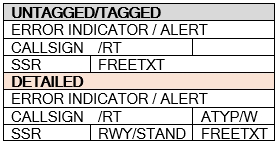
P21 TWR TAG (GRP)


Label functions
- CALLSIGN - Open Callsign menu (see below)
- STAND - New assignment: Acknowledge it; Otherwise: Open stand assignment menu
- DEP - Left-click: Open SID setup popup list; Right-click: Open assigned heading popup list
- RWY - Open runway setup popup list
- RMK - Edit scratch pad string
Callsign menu

The Callsign menu for correlated tracks contains the following (unavailable ones shown with gray text):
<Ground state>> (Displays current ground state) Opens the Ground state menu- Assume > Assumes the track
- Trans
<ID>> Transfers the track to the indicated controller - Man Tfr > Opens a menu to manually transfer the track to any controller
- Free > Drops the track
- FPL > Opens the EuroScope Flight plan setting dialog
- Stand > Opens the Stand assignment menu
- Uncorrelate > Uncorrelates the flight plan from the radar track
- MissedApp > Toggle "Missed approach" manual alert
- Inbd Est > Toggle "Inbound estimate" manual alert
- Irregular > Toggle "Irregular" manual alert
- Weather > Toggle "Weather" manual alert
Ground state menu
Departure:
- SHOW > Sets the custom "On Freq" state
- DICE > Sets the custom "De-Ice" state
- STUP > Sets the default or custom "Start-Up" state
- PUSH > Sets the default "Push" state
- TAXI > Sets the default "Taxi Out" state
- LIUP > Sets the custom "Line Up" state
- DEPA > Sets the default "Depa" state
- (empty) > Clears the ground state
Arrival:
- ARRV > Sets the default "Taxi In" state
- PARK > Sets the default "Parked" state
- (empty) > Clears the ground state
All labels are disabled by default to maintain display clarity and facilitate traffic management. To display an aircraft label, it is necessary to set its ground state to "SHOW" or any other.
For arriving aircraft that have parked at their stand, their label can be hidden by setting the ground status to PARK. This procedure is identical to the method used for departing aircraft, which is performed via the Callsign menu.
To accurately simulate the operational requirements of real Surface Movement Radar (SMR) systems at EPWA and EPGD airports, all aircraft must have their transponders set to Mode C for their labels to be displayed.
It is critical to note that setting a ground state alone is insufficient; if an aircraft's transponder is in STBY mode, the label will not be generated, regardless of the assigned ground state. Both conditions—an appropriate ground state (e.g., SHOW) and an active transponder in Mode C—must be met for the label to be visible.
It is really important to change the ground state according to current actions of the traffic. Real A-SMGCS alerts are following potentially unsafe situations and will present alert indication in the event of a predicted conflict or deviation from expected behavior. Therefore, the ground state must be updated proactively to reflect the dynamic situation on the maneuvering area. Full description of all alerts is available in the Ground Radar Plugin General Manual, Chapter 8, "Safety Nets".
Ground Radar Plugin configuration
The Ground Radar Plugin offers a wide range of capabilities, configuration settings, new graphical elements, and systems designed to support controller workflows. It is a core component of the PLVACC Tower controller package.
The following section highlights the plugin's most useful features. Nevertheless, a thorough review of the Ground Radar Plugin General Manual is strongly recommended for all users.

Global menu: Settings
-
Display > Opens the Display submenu
-
Labels > Opens the Labels submenu
-
Lists > Opens the Lists submenu
-
Alerts
-
ARR
-
DEP
-
Dep Timer
-
Stands
-
TTT
-
Raw Video > Opens the Raw Video submenu
Global menu: Window
- 2nd, 3rd, … -> Opens the respective Traffic Situation Window (not used in PLVACC config)
- APP 1, APP 2, … > Opens the respective Approach Window
- Approach Path > Opens an Approach Path Window (not used in PLVACC config)
- TTT > Opens a Time To Threshold List
- Dep Timer > Opens a Departure Timer List
- Lists > Opens the Lists submenu
- ARR > Opens the Arrival List
- DEP > Opens the Departure List
- Stands > Opens the Stands List
- Runway Conf > Opens the Runway Configuration Window
- RVR > Opens the RVR Window
- QNH > Opens the QNH Window
- METAR > Opens the METAR Window
- Wind Rose > Opens a Wind Rose Window
Extended description of every list and window can be found in GRP – General Manual (access via EPWW/Plugins/GRPlugin folder)
Global menu: Functions
- Flight Plan > Opens the Flight plan setting dialog (enter callsign)
- Text notes > Opens the Text notes submenu (see the General Manual)
- Map Selection > Opens the Map Selection Window (Lists only maps defined to be visible on the main screen)


Some of the maps are toggled automatically, depending on active runways, controllers online or other conditions. Left-click the line to toggle the map state between active and inactive. If the map is in automatic mode, left-clicking will also set it to manual mode. For maps with automatic activation, right-clicking the line toggles the map between automatic and manual mode. When changing from automatic to manual mode, the current activation state is kept.
Global menu: QNH and LVP window


Displays the latest QNH if a METAR for the airport has been received by EuroScope. When the QNH changes, the background will be set to yellow color. Left-click to acknowledge the change.
Left-click to toggle between "NORMAL" and "LVP". This sets the runway related alert settings accordingly and stopbars to ILS CAT II/III configuration (if able).
Approach Window
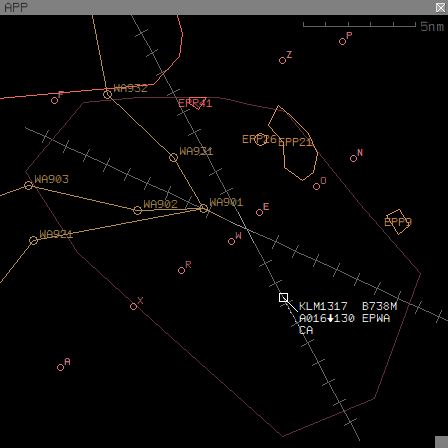
The Approach Windows display traffic around the airport (traffic on the ground at the airport is hidden). The window displays the runway centerlines, and optionally extended centerlines and various maps. The number of Approach Windows available depends on the setup, by default there is one.
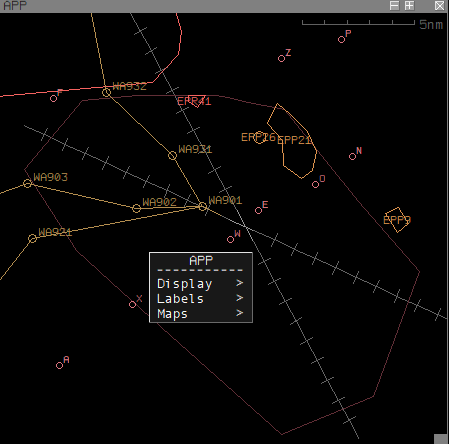
To pan the view, drag somewhere on the display area. Left-double-clicking centers the view on that position. Right-clicking on the window background area opens a window menu.


Departure Timer

The Departure Timer List displays aircraft that have recently departed from that runway. The aircraft are added to the list when their groundspeed exceeds 40 knots and are automatically removed after a defined time. They can also be manually removed at any time by left-double-clicking on the DT field. The list is sorted according to departure time, with the most recently departed aircraft at the top.
The list is a valuable tool for managing wake turbulence separation. It enables controllers to exercise more precise control over the time-based separation between departures.
- DT > Elapsed time (mm:ss) from departure
- C/S > Callsign
- W > Wake turbulence category
- SID > SID designator
Time to Threshold List

The Time To Threshold List displays a list of aircraft approaching that runway. The aircraft are added to the list when they are established on the extended centerline, are less than 30nm from the threshold and at an altitude not more than 5000ft above the airport elevation. The list is sorted according to distance from the threshold, with the closest aircraft at the top.
- TTT > Time to threshold (mm:ss) assuming current groundspeed
- C/S > Callsign
- DTT > Distance to threshold (nm)
- TYPE > Aircraft Type
- W > Wake turbulence category
- ETA > Estimated time of arrival
- STAND > Assigned arrival stand
Digital-ATC Clearance (DCL)
The TopSky plugin provides integrated datalink clearance functionality for controller-pilot communication. As no VATSIM standard for this service currently exists, the plugin interfaces with the external Hoppie's ACARS network. To utilize this feature, controllers must obtain a personal logon code, which can be requested directly from the website. Prior to first use, personal logon code should be pasted into the TopSkyCPDLChoppieCode.txt file.
CPDLC Setting window
The departure clearance functionality is built into the Departure List and Startup List.

Login is replaced by the LOGON code from the table in INOP (for ACC sectors using CPDLC) or airport ICAO code (for TWR/GND/DEL). If personal Logon Code is pasted in TopSkyCPDLChoppieCode.txt, it will be pre-filled.
Departure Clearance window
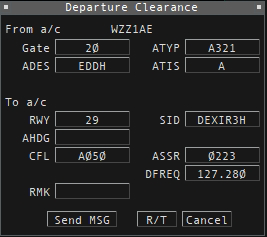
The Departure Clearance Window is used to issue datalink clearances. It will open only, when a datalink clearance has been requested - the List DCL tag item will show a "RCD" text in yellow.
Fields description:
- RWY > Departure runway (left-click to open RWY setup popup list)
- SID > SID designator (left-click to open SID setup popup list)
- AHDG > Assigned heading (left-click to open AHDG menu)
- CFL > Cleared level (left-click to open CFL menu)
- ASSR > Assigned transponder code (left-click to open SSR Code menu)
- NFREQ > Next frequency (left-click to open text entry box)
- DFREQ > Departure frequency (left-click to open text entry box)
- RMK > Remarks text (left-click to open text entry box)
NFREQ and DFREQ must be filled to send a clearance. Next frequency is the frequency the pilot should contact after receiving their delivery clearance. This frequency can be Delivery (if active) to get transferred to Ground controller for startup or pushback according to TSAT (if CDM is in use or CTOT is assigned).
RMK can be filled with TSAT if CDM is in use, i.e. "TSAT 1941z".
The buttons are as follows:
- Send MSG > Sends the clearance message, closes the window
- R/T > Sends a "REVERT TO VOICE" message, aborts the datalink clearance process
- Cancel > Closes the window
The "Send MSG" button is available only when a clearance can be sent (all required boxes have been filled).
APP and ACC Configuration Manual
Lists
Sector Inbound List
The Sector Inbound List shows aircraft which route crosses controller's area of responsibility.
Sector Exit List
The Sector Exit List shows aircraft which are currently assumed by controller - they are within his area of responsibility.
Departure List
The Departure List shows you all aircraft currently on the ground on your active departure airport(s). It is a little bit simplified version of list used by AGC controllers.
These three lists are sticked together and their length is adjusted automatically depending on the amount of content they contain.
Startup List
The Startup list in APP/ACC configuration is simplified to minimum and shows essential information from the ACDM/ATM system.
Arrival list
The Arrival List shows all inbounds that are closer than 10 NM to their destination airport. It is used to check assigned stand for arriving traffic.
Display description
Main display
Main display (EPWW.asr) is based on the TopSky Plugin, which adjust the display according to current position and other controllers (eg. if logged in as EPWW_CTR and EPWA_APP is online, elements within TMA Warszawa will not be displayed). Elements appear on the display dynamically - based on current zoom level.
Below stated elements are displayed by default:
- Tactical DCT (LOA waypoints),
- TMA fixes (entry and exit waypoints),
- APP fixes (waypoints near final approach),
- STAR (dashed lines which display arrival procedures),
- MVA (MRVA borders),
- VFR (waypoints and routes).
Via the TopSky Maps menu, controller may turn on SID display or waypoints on FIR boundary.
Ground display
Ground display (EPWW_GND.asr) is used to provide top-down service at aerodromes. It is activated via the F1+2 shortcut and TopSky View window, which zooms the view on the selected aerodrome. To return to main display simply press F1+1.
Ground display is based on Ground Radar plugin display, the same which is used in TWR configuration. For further instructions check Tower Controller Manual chapter.
TopSky plugin
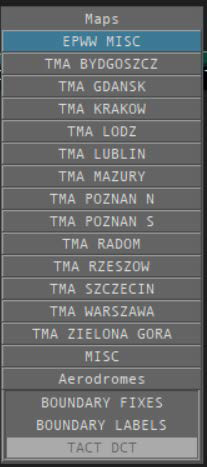
TopSky Maps file structure
TopSky Maps file contain all defined display elements. They are divided by TMAs and by the element type. Controllers should not make any changes in this file.
Some elements appear in the file or TopSky Maps menu few times, it is made intentionally, as the display depends on controller's position.
Additional elements (eg. boundary fixes, tactical directs) are grouped as "EPWW MISC".
TopSky Maps menu
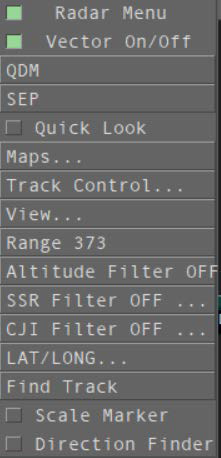
TopSky Maps menu can be toggled via the Radar Menu (right-click on TopSky gray strip).
TopSky CARD
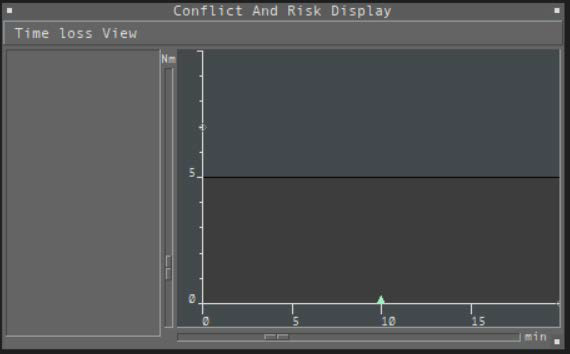
TopSky plugin offers a function - window to monitor conflict risk, which help controller plan the traffic flow.
TopSky View window
TopSky View window is used to zoom on the selected aerodrome or position.
GDN, KRK, POZ, WAW zoom - are used for APP controllers to get back to full scope view.
Aerodromes zoom - are used to zoom to the ground layout on the Ground display.
Between APPs and aerodromes - blank space - can be clicked to zoom out for the ACC view.

TopSky CPDLC
After logging onto the position and selecting primary frequency (which should occur automatically), CPDLC Setting window will appear.
Login is replaced by the LOGON code from the table in INOP (for ACC sectors using CPDLC) or airport ICAO code (for TWR/GND/DEL). If personal Logon Code is pasted in TopSkyCPDLChoppieCode.txt, it will be pre-filled according to selected Prim Freq.
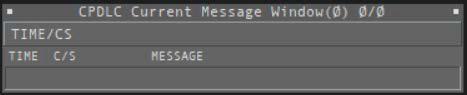
CPDLC messages will appear in the CPDLC Message window.
TAG labels
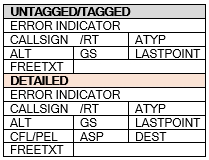
The default TAG Family for APP/ACC configuration is named P21-APP. It has been updated to be compatible with TopSky Plugin CPDLC functions.
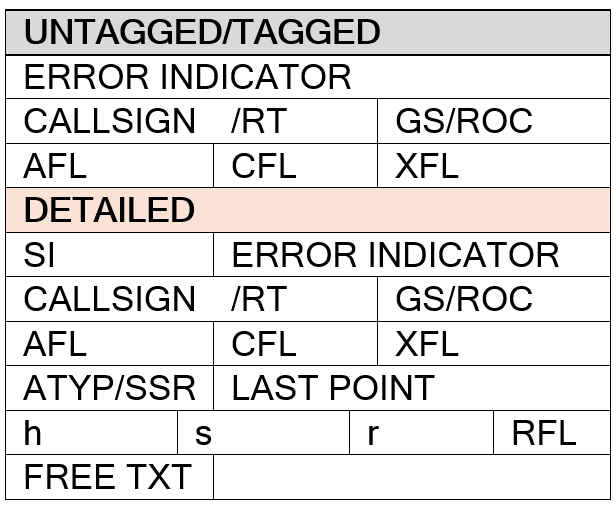


| Tag item | Description | Left click | Right click |
|---|---|---|---|
| ERROR INDICATOR | Shows alert messages (eg. SQ, EMER, MTCD) | - | (SQ error) Open ASSR Menu |
| SI | Sector Indicator - shows current or next sector ID/freq | Open handoff popup menu | Toggle sector ID/freq |
| CALLSIGN | - | Open Callsign menu | Toggle route draw |
| /RT | Communication type (r - receive, t - text, none - voice) | - | Open communication type popup |
| GS/ROC | Ground speed / Rate of Climb indicator | Toggle route prediction points draw | GS/ROC Cycle |
| AFL | Actual Flight Level | Toggle Route draw with conflict prediction | Open temporary altitude popup list |
| CFL | Cleared Flight Level (displayed if CFL =/= AFL) | Open CFL menu | Open temporary altitude popup list |
| XFL | Coordinated Level (displayed if XFL =/= CFL) | Open COPN/COPX altitude coordination list | Open COPN/COPX altitude coordination list |
| ATYP/SSR | Aircraft type / Squawk code | Toggle route draw | ACTYPE/SSR Cycle |
| LAST POINT | Displays destination / FIR COPX point | Open flight plan dialog box | Open next points popup list |
| h | Assigned heading / Direct | Open AHDG menu | Open Waypoint menu |
| s | Assigned speed | Open ASP menu | Open assigned speed popup list |
| r | Assigned rate | Open ARC menu | Edit scratch pad string |
| RFL | Requested Flight Level (2 digits) | Open final altitude popup list | - |
| FREE TEXT | Scratch pad (if not empty) | Edit scratch pad string | Edit scratch pad string |
Heading drawing function is also implemented from TopSky plugin. To assign heading via the vector, left-click on the Radar Target Symbol. To temporarily disable the known points functionality, keep the <ALT> key pressed while using the vector.
Customization
TopSky plugin can be customized for controller needs. All modifications made by controller, which differ from the published package must be made in local settings file (TopSkySettingsLocal.txt). Everything stated in this file will overwrite, settings defined in TopSkySettings.txt file, which contains official setup.
In pack you can find CCAMS plugin, its functionality is only to enable ability to display Mode S EHS List. You can load the plugin and turn on the list, if necessary.
We do not recommend to change anything except windows location.
Plugins
Ground Radar Plugin
The Ground Radar Plugin (author: Jula Holopainen – VATSIM Scandinavia; abbreviated as GRP/GRPlugin) simulates the SAAB A3000 A-SMGCS system. In the vFIR EPWW package, it is responsible for generating an overview of the airport apron and radar monitoring of the space around the airport. Additionally, it enables automatic assignment of parking stands. It selects them according to the type of aircraft (wingspan, assignment of callsigns to appropriate stands, etc.) SP and types of stands (Schengen/non-Schengen). They are assigned to the ARRIVAL LIST from the "STND" column. The plugin documentation can be found in the GRPlugin folder.
TopSky
TopSky (author: Jula Holopainen – VATSIM Scandinavia) is based on the real TopSky ATM system and allows for extensive configuration of TAGs, menus, options, graphic elements, and other functionalities. Full documentation for the plugin can be found in the Documentation folder in the TopSky folder.
CDM
CDM (author: Roger Puig) is an implementation of the ACDM system for VATSIM. The plugin enables a broad simulation of real ACDM systems and Network Manager. It is extremely useful in controlling heavy departure traffic at airports and planning air traffic.
InitialClimb
InitialClimbPlugin (by Roger Puig) sets the cleared altitude to the initial climb altitude for a given airport, runway, and departure procedure. This automates the work of the controller issuing the flight clearance by filling in the CFL field itself.
Virtual Controller Helper (VCH)
The VCH plugin (author: DrFreas) is a tool to help controllers. It allows you to easily and simply record pilot requests in the REQ (Request) column, where you can select the type of pilot request, and in the RQT (Request Time) column, a stopwatch will automatically measure the time from when the request was made. Additionally, thanks to the plugin, there is a landing clearance flag on the Arrival List – an indicator of whether landing clearance has been granted.